Practical guide to CAD software for 3D printing: choose, design and optimize your models
Choosing the right CAD software is the crucial first step to entering the world of personal 3D printing. The difference between a successful and a failed project often depends not only on the printer, but above all on the design tools used and the understanding of modeling best practices. This guide accompanies you in the selection and use of the program best suited to your needs, offering you a clear path to transform your ideas into printable physical objects.
Why the right CAD software makes a difference in 3D printing
The CAD you choose directly affects the quality, precision, and ease of printing of your models, determining the success or failure of projects.
Learning to use CAD can seem intimidating, but with the right tools the process becomes much simpler. Software represents the bridge between the idea and the physical object: a wrong choice can generate unprintable models, geometry errors, or hours of frustration during post-processing.
Compatibility with the STL format — the standard for 3D printing — is fundamental, but it is not the only factor. A good program for beginners must offer an intuitive interface, which does not require weeks of training, and allow you to export files directly to printing software, select the material, and start printing with a few clicks.
Dimensional accuracy is equally critical: models must be faithful to the original design and respect required tolerances, especially when designing functional parts or components that must fit together.
The best free CAD software for beginners in 2026
Updated overview of the most accessible and intuitive solutions for those approaching 3D printing from scratch, without initial investments.
Tinkercad It remains the most popular choice for those starting from scratch. This browser-based program offers an extremely simple drag-and-drop interface, ideal for those who have never used CAD tools. Simplicity does not imply limitations: you can create complex models by combining basic shapes and modifying them with intuitive operations.
Fusion 360 is the next step for those who desire advanced functionality while maintaining an accessible interface. Autodesk offers free licenses for hobbyists and makers, providing a professional-level tool at no cost. Fusion 360 excels in parametric modeling, allowing you to modify designs even after completing them.
FreeCAD is the open-source option par excellence, completely free and without limitations. The learning curve is a bit steeper compared to Tinkercad, but it offers powerful parametric modeling tools and an active community ready to support new users.
Also worth mentioning are Onshape, a cloud platform that allows real-time collaboration, and Vectary, appreciated for its modern interface and integration with rendering tools.
How to evaluate essential CAD software features
Critical factors to consider when choosing a tool that truly supports your workflow, from design to final printing.
Format compatibility: The program must export to STL without issues; support for OBJ, STEP, or 3MF is also useful, as they offer greater flexibility.
User interface: It must be intuitive and not require specialized skills. Look for project-based workflows that allow you to start work with a single click. A well-designed interface drastically reduces the learning curve.
Support community: Essential for beginners. Programs with active users offer tutorials, forums, and resources that make a difference when you encounter difficulties. Check for the availability of documentation in Italian or understandable English.
Validation functionality: Some programs include tools that automatically detect geometry problems — non-manifold surfaces or insufficient thickness — potentially causing printing errors.
Scalabilità: lo strumento che scegli oggi dovrebbe accompagnarti nella crescita di competenze, senza doverlo abbandonare completamente quando diventi più esperto.
Best practice per una modellazione ottimizzata per la stampa 3D
Tecniche concrete per evitare errori comuni e migliorare stampabilità e qualità dei modelli fin dalla fase di progettazione.
Progetta con spessori di parete adeguati: uno degli errori più frequenti è creare pareti troppo sottili. Per la stampa FDM mantieni uno spessore minimo di 1-2 mm; per la SLA puoi scendere a 0,5-1 mm. Verifica che il programma mostri chiaramente gli spessori durante la modellazione.
Minimizza i supporti: orienta i modelli pensando a come verranno stampati. Evita angoli superiori a 45° senza supporto. Alcuni programmi mostrano in anteprima dove saranno necessari i supporti, aiutandoti a modificare il design di conseguenza.
Rispetta le tolleranze: se progetti parti che devono incastrarsi, prevedi un gioco di almeno 0,2-0,3 mm per la FDM. Il CAD ti permette di impostare questi parametri con precisione.
Avoid problematic geometries: flat and wide surfaces tend to deform. Add reinforcing ribs or texture to improve stability. Use fillets and chamfers instead of sharp corners to reduce stress concentration.
Check manifoldness: ensure the model is “watertight”, i.e., free of holes. Many modern CAD tools include automatic verification features that detect and correct these defects.
From project to print: complete workflow with practical example
Real-world example showing how to take an idea from concept to final print using the right software and applying best practices.
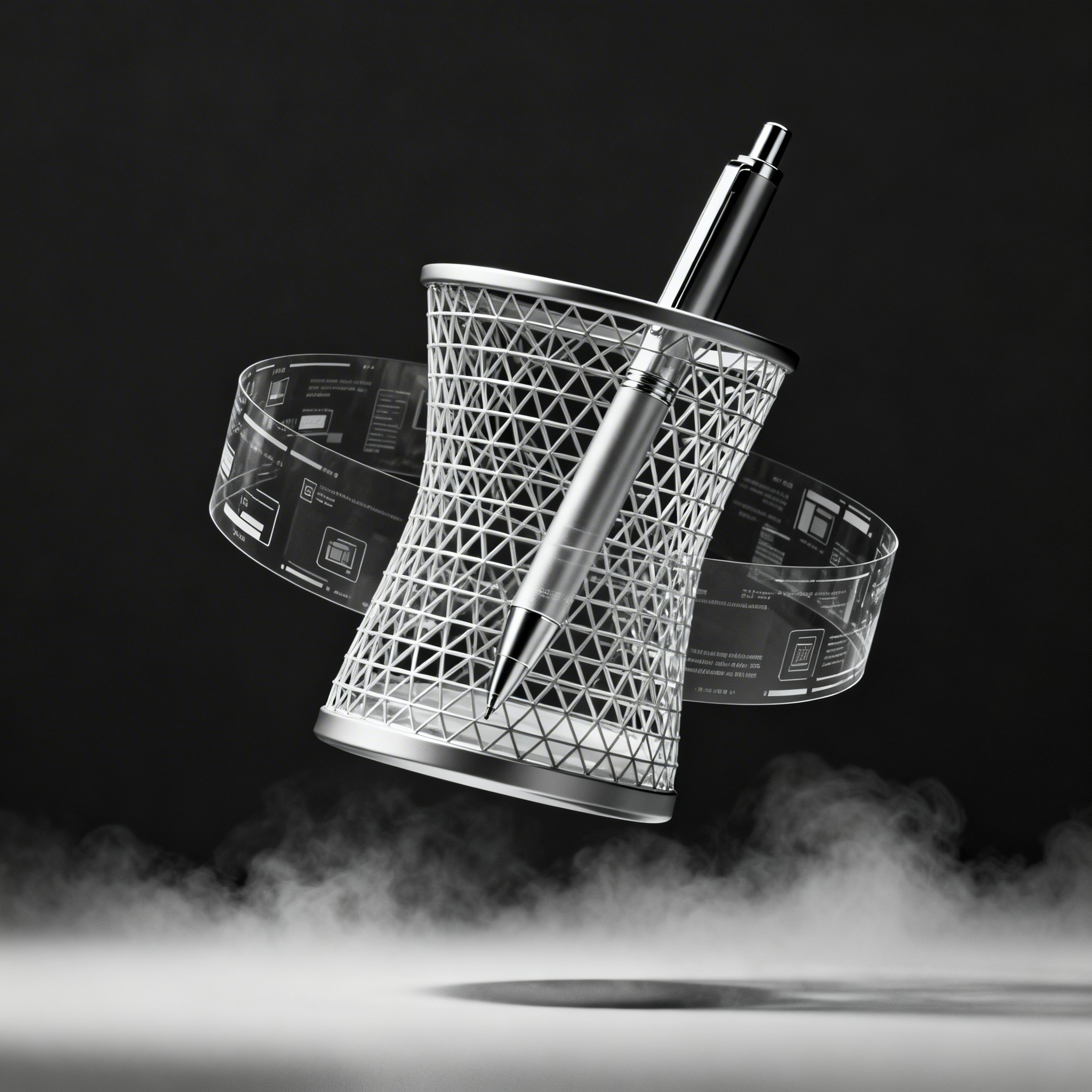
Let's take the creation of a customized pen holder with a paperclip compartment. Open Fusion 360 and create a new project. Use “Create Sketch” to draw the circular base (diameter 80 mm), then extrude upwards for 100 mm with a thickness of 2 mm.
Add the paperclip compartment by creating a rectangular cavity (30 × 40 mm) at mid-height, 15 mm deep. Apply the “Fillet” function to round the edges with a radius of 2 mm, improving aesthetics and printability.
Before exporting, use analysis tools to verify thicknesses and identify any potential issues. Export to STL with medium resolution.
Import the file into the slicing software (Bambu Studio or equivalent). Orient the model with the base on the print bed and verify that supports are minimal. Select PLA, set infill to 20%, and start the print.
The result only requires the removal of any supports and light sanding. The entire process, from design to printing, takes just a few hours and demonstrates how a well-structured workflow produces predictable, high-quality results.
Conclusion
Choosing CAD software is just the beginning of your journey into 3D printing: applying good practices from the start drastically improves results, reducing material waste, time, and frustration. Remember that the key to success lies not in the most expensive or complex program, but in mastering the basic tools and understanding the fundamental principles of design for 3D printing.
Start with a free program like Tinkercad or Fusion 360, experiment with simple projects, and gradually increase complexity. The maker community is rich in resources and always ready to help.
Try one of the recommended programs following our checklist and share your first optimized model in the comments! What difficulties did you encounter? What tricks did you discover? Sharing enriches
article written with the help of artificial intelligence systems
Q&A
- Why is the choice of CAD software fundamental to the success of a 3D printing project?
- CAD determines the quality, precision, and ease of printing of the model. A wrong choice can generate unprintable files, geometry errors, and hours of frustrating post-processing. The software is the bridge between the idea and the physical object.
- What are the three most recommended free CAD programs for someone starting from scratch in 2026?
- Tinkercad for its browser-based drag-and-drop interface, Fusion 360 for its advanced features with a free hobbyist license, and FreeCAD as a powerful open-source alternative. All three export directly to STL.
- What minimum wall thickness should be planned for an FDM and an SLA print?
- For FDM printing, maintain at least 1-2 mm thickness; for SLA, it can go down to 0.5-1 mm. Thinner thicknesses risk not filling correctly or breaking.
- How do you avoid excessive supports when modeling an object?
- Orient the part already in the CAD phase, avoiding angles greater than 45° without support. Many programs preview the areas that will need supports, allowing you to modify the design before exporting.
- What is the minimum clearance (tolerance) to provide between parts that must fit together in FDM printing?
- Provide at least 0.2-0.3 mm clearance between surfaces that must fit together. This compensates for printing tolerances and prevents parts from jamming or not aligning.
- What does it mean for a model to be “watertight” and how is it verified?
- It means the mesh must have no holes or open edges. Many CAD programs include automatic analysis tools that highlight and often automatically close non-manifold zones before exporting to STL.